
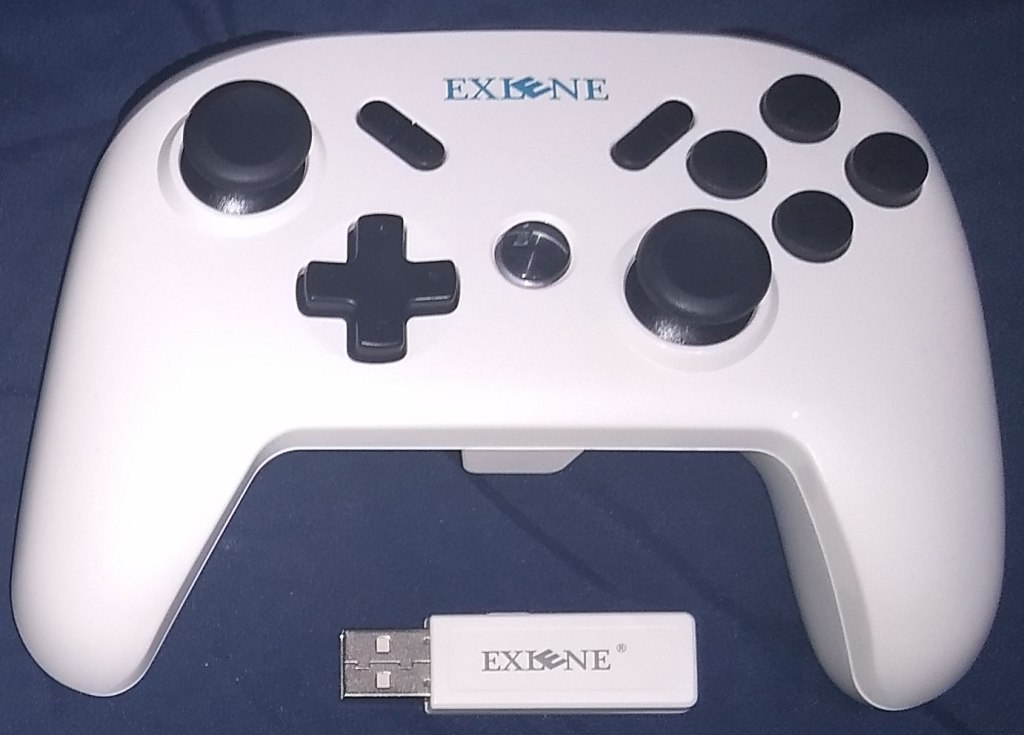
Exlene Wireless Pro Controller
Hardware Type: Game Controller
.
Review:
Note: This is an outdated review. You can find the updated review here.
(Note: Review product provided by the kind folks at Exlene)
If you asked most gamers which game controller is the best on Nintendo Switch, you’d likely get one of two answers: Nintendo’s own Pro Controller, or the 8BitDo SN30 Pro+ Controller. I hear the SN30 Pro 2 is also excellent, but I haven’t gotten my hands on one just yet, so I can’t say how that stacks up. Each of these comes with a tradeoff – Nintendo’s Pro controller is one of few controller types that can wirelessly wake the Nintendo Switch from sleep mode and read Amiibo figurines, and it has an excellent form factor that makes it far more comfortable than a pair of Joy-Cons in a holder… however, it costs a whopping $70-$80. 8BitDo’s controller, on the other hand, has a more sensible $50 price tag, button-mapping, PC compatibility, macro support, analog triggers for PC gameplay… but it lacks the ability to wirelessly wake the Switch from sleep mode and read Amiibo figures.
Exlene’s Wireless Pro Controller aims to be the best of both worlds – it boasts the ability to wake the Nintendo Switch from sleep mode, read Amiibo figures, connect to PC and mobile devices, and even has a few additional features… all for $50. Looking over a list of its features, I felt that if it succeeded in everything it attempted, it would take the crown as the best controller on the Nintendo Switch. So the question is… how well does it manage to do everything?
For what comes in the box, you have the controller itself, a 3-foot USB-C cable, a USB Bluetooth dongle, and a small single page of instructions with teenie-tiny text. You can see it all in this image (with a Nintendo Switch Pro controller to compare sizes). I cannot stress enough how small the text is on the instructions. It is eye-wateringly tiny. Here is a closer look at the front of the instructions with the dongle, and here’s a closer look at the back of the instructions. Sadly, this doesn’t even contain all the instructions you’ll need to operate this thing, you’ll also want to refer to the text on the company’s webpage for the controller as well, although even these two combined are still missing some vital information (but more on this later).
The form factor and button placement of Exlene’s controller is similar to Nintendo’s Pro controller (a much closer match than 8BitDo’s controller), but there are slight differences. Exlene’s Pro Controller has bigger A, X, B, and Y face buttons, the – button has been moved over to the right side and connected to the + button, the Camera button now has a connected Turbo button, and the Home button is now a large backlit centered button similar in its placement to the PlayStation button on a PlayStation 3/4 controller.
However, probably the most unexpected difference here is the ZL and ZR buttons, which jut out farther than the triggers on either of the other two controllers do. For me, this resulted in Exlene’s controller being the least comfortable out of the three, but that may just be personal preference – I had Jenn try it out and she said she actually much preferred the form factor of the Exlene controller’s ZL and ZR buttons. Oh, and while we’re on the topic of the Exlene controller’s ZL and ZR buttons, know that these are digital buttons, not analog – something that won’t matter on the Nintendo Switch, but makes a difference if you’re planning on using this controller on the PC or mobile platforms (one point in favor of 8BitDo’s controller).
Another point of contrast between Exlene’s controller and Nintendo’s is that Exlene’s controller weighs less (240g compared to 297g). In addition, its casing is a simple two-piece construction that lacks the smooth center piece and textured grips of Nintendo’s controller. The L, R, ZL, and ZR buttons also lack the contouring of Nintento’s controller, and instead have a ribbed texture for grip. The end result of all of this is that Exlene’s controller feels cheaper than Nintendo’s controller does, although I can’t say if its build is of better or worse quality (I am neither a design expert nor a structural engineer).
When it comes time to pair Exlene’s controller, it’s pretty easy after a brief bit of trial and error. Exlene’s controller doesn’t have a dedicated pairing button, but holding down the Home button for a few seconds suffices for that perfectly fine. Interestingly, the controller has different processes if you’re pairing it with a Nintendo Switch, PC, or mobile device, and a different color backlight for the home button depending on which mode you’re in.
To pair it with your Nintendo Switch you simply go into the Controller menu on your Nintendo Switch, then the “Change Grip/Order” sub-menu, then hold down the Home button on the controller – neither the dongle nor the USB-C cable is needed. From that point on, it will remain paired with your Nintendo Switch until you pair it with another device. To pair it with your Windows 7, 8, 9, 10, or Windows XP PC, you need to have that dongle plugged into the PC, and then press a pairing button on the dongle before holding down the Home button on your controller. To pair it with your mobile device, you must either hold A (for Android) or Y (for iOS) while you briefly hold down the Home button while your mobile device is in pairing mode. Of course, if you’re just looking to play with the controller wired to the device of your choice, you can simply pop in the USB-C cable and not bother with pairing.
If you’re wondering why I type this all out, it’s so you don’t have to keep referring back to all those pages of instructions I linked a moment ago. So… you’re welcome!
Getting back to the Nintendo Switch, once you have paired your Exlene controller, it acts pretty much just like a Nintendo Switch Pro Controller – holding down the Home button wakes the Nintendo Switch from sleep mode and the controller immediately registers as controller number one (I actually found this function worked even better and more reliably than on Nintendo’s own controller!). If the Nintendo Switch is already on, of course, it becomes the next assigned controller, whichever that is. The one thing Exlene’s controller lacks in this area is a lighting indicator of which controller number it is for multiplayer play – players will just have to figure it out in-game, unfortunately.
While I’m talking about the controller’s most noteworthy features, I’ll just get it out of the way now – yes, the Amiibo functions here work flawlessly too. This controller really does manage those two things that most third-party controllers simply can’t do. There’s not much to say about this – take a game into Amiibo scanning mode, pop the Amiibo on the Exlene logo, and the game quickly detects it. Easy-peasy. This controller also has gyroscopic motion control that works wonderfully, although this was less of a surprise to me than some of the other features this controller has – Exlene already demonstrated their ability to replicate this feature in my review of the Wireless GameCube Switch Controller.
I should also take the opportunity to talk about some of this controller’s more unique features. While it doesn’t have button-mapping or macro support like 8BitDo’s controller, Exlene’s controller does have a dedicated Turbo button that is surprisingly easy to use. Hold it down and press any button to make that button become a “Turbo” version of the button in question that repeatedly presses over and over again when you hold it down. Do it again to make the button an “always on” Turbo button. Do it a third time to return the button’s function to normal. Again, super-easy. Additionally, Exlene’s controller has another feature where players can hold down A, X, B, and Y to swap the buttons’ bindings with the placement typical of Xbox controllers – a useful tool for those wanting to maintain consistency when playing on PC or mobile devices and not wanting to be sabotaged by their own muscle memory.
The battery life for the controller seemed to be all-around excellent – Exlene claims it will run for 40 hours on 2 hours of charge, and with my heavy use of the controller over multiple days of play, I believe it.
Thus far, most of the flaws I’ve named for the Exlene controller are fairly minor – its construction feels a bit cheap, I don’t personally like the form factor of the ZL and ZR buttons, the ZL and ZR buttons are digital and not analog, it’s lacking player number indicators, it doesn’t have button-mapping or macro support, and the instruction manual is terribly inadequate. All of those are really minor quibbles for a controller that’s $20 cheaper than Nintendo’s controller, still has Amiibo support and the ability to wake the console, and can play on PC and mobile devices too. However, Exlene’s controller does have one major flaw that keeps it from being the clear-cut best controller on Nintendo Switch, and if you’ve been paying attention, you may have noticed me avoiding mentioning that issue until now.
Exlene’s controller’s rumble feature is pretty terrible. The controller doesn’t support HD rumble, but more to the point, the controller has zero ability to detect the strength of the rumble it’s supposed to output, so any rumble it’s meant to do goes out at full-power. This was something I didn’t notice in some games, but was highly-distracting in others. In Super Smash Bros. Ultimate, for example, even the slightest actions would cause this controller to go crazy, making for a huge distraction in a game where precision moves are absolutely vital (well, at least, the way I play).
Exlene advertises that the vibration in this controller is adjustable, but I found no instructions on how to adjust it in either the included page of instructions or the website, and as such could only proceed as if the option simply doesn’t exist. If I come across an indication how to change this, I will edit this review to reflect it, but for now, the lack of helpful instructions and a poorly-implemented rumble feature combine to make for the biggest flaw in this otherwise great controller.
However, even with that flawed rumble, and all the other minor issues I just named… the Exlene Wireless Pro Controller is still a pretty great controller. For most games, I would say this controller is about on par with both of the other controllers I named above, although there are definitely going to be occasional games where that rumble problem makes this the inferior choice. However, on the whole, if you’re looking for a controller other than the Switch Pro that can wake the Nintendo Switch and scan Amiibos, this is an excellent controller, well worth getting, and just a few flaws shy of being on the same level as the best controllers on the platform.
tl;dr – Exlene Wireless Pro Controller has two features that are unusual for a third-party Nintendo Switch controller – it can wake the Nintendo Switch from sleep mode, and it can scan Amiibo figurines. It also has some nice, user-friendly extra features like turbo functionality, as well as PC and mobile device support. However, it falls just short of the best controllers on the Nintendo Switch due to a few minor issues and one major one – terrible, overbearing rumble is only a problem in some games, but it’s still an unnecessary frustration and brings this down from being one of the best controllers on the Nintendo Switch to merely being a great controller. Still well worth getting if you’re interested in this controller’s specific features, though.
Grade: B+
You can support eShopperReviews on Patreon! Please click HERE to become a Sponsor!
This month’s sponsors are u/punkgeek, Andy Miller, u/wonderponder, Johannes, Eli Goodman Ilya Zverev, and Stov. Thank you for helping to keep the reviews coming!
 eShopperReviews


Leave a comment